# Resources

# Setup to work with TapeMeasure


# Tape Measure Basic Step Up - SDK File & Virtualenv

<p class="callout info"><span style="font-size: 16pt; font-family: 'Times New Roman', serif; background-color: transparent; font-style: normal; font-variant: normal; text-decoration: none; vertical-align: baseline; white-space: pre-wrap;"><span style="font-size: 16pt; font-family: 'Times New Roman', serif; background-color: transparent; font-style: normal; font-variant: normal; text-decoration: none; vertical-align: baseline; white-space: pre-wrap;">This setup guide is for Windows 10/11 &amp; Mac users only!</span></span></p>

<span style="font-size: 16pt; font-family: 'Times New Roman', serif; background-color: transparent; font-weight: bold; font-style: normal; font-variant: normal; text-decoration: none; vertical-align: baseline; white-space: pre-wrap;">System Requirements:</span>

- <span style="font-size: 12pt; font-family: 'Times New Roman', serif; background-color: transparent; font-weight: 400; font-style: normal; font-variant: normal; text-decoration: none; vertical-align: baseline; white-space: pre-wrap;">Must have any python version above 3.6 (3.8 recommended).</span>
    - <span style="font-size: 12pt; font-family: 'Times New Roman', serif; background-color: transparent; font-weight: 400; font-style: normal; font-variant: normal; text-decoration: none; vertical-align: baseline; white-space: pre-wrap;">No python? No problem! Download it </span>[<span style="font-size: 12pt; font-family: 'Times New Roman', serif; background-color: transparent; font-weight: 400; font-style: normal; font-variant: normal; text-decoration: underline; text-decoration-skip-ink: none; vertical-align: baseline; white-space: pre-wrap;">here</span>](https://www.python.org/downloads/)<span style="font-size: 12pt; font-family: 'Times New Roman', serif; background-color: transparent; font-weight: 400; font-style: normal; font-variant: normal; text-decoration: none; vertical-align: baseline; white-space: pre-wrap;">.</span>

<span style="font-size: 12pt; font-family: 'Times New Roman', serif; background-color: transparent; font-weight: 400; font-style: normal; font-variant: normal; text-decoration: none; vertical-align: baseline; white-space: pre-wrap;"><span style="border: none; display: inline-block; overflow: hidden; width: 624px; height: 300px;">![A screenshot of a computer

Description automatically generated](https://lh5.googleusercontent.com/vrVY-ELDircEfKX8G8h-xygUEMnvCDkVccATbISmyuCVtTNcc7e70JFnkkGL3awM5EwZfBqJQcRNZuQYycs_2q0fwLT6CnK9vBZwOO5BF8UR1372mjoNs9Vvbm5h1ucrrGlhAtHSW_BZn53r1y_6GQ)</span></span>

- <span style="font-size: 12pt; font-family: 'Times New Roman', serif; background-color: transparent; font-weight: 400; font-style: normal; font-variant: normal; text-decoration: none; vertical-align: baseline; white-space: pre-wrap;">You also must have a python code editor such as Virtual Studio Code (my choice but up to you).</span>
    - <span style="font-size: 12pt; font-family: 'Times New Roman', serif; background-color: transparent; font-weight: 400; font-style: normal; font-variant: normal; text-decoration: none; vertical-align: baseline; white-space: pre-wrap;">Download VS Code </span>[<span style="font-size: 12pt; font-family: 'Times New Roman', serif; background-color: transparent; font-weight: 400; font-style: normal; font-variant: normal; text-decoration: underline; text-decoration-skip-ink: none; vertical-align: baseline; white-space: pre-wrap;">here</span>](https://code.visualstudio.com/download)<span style="font-size: 12pt; font-family: 'Times New Roman', serif; background-color: transparent; font-weight: 400; font-style: normal; font-variant: normal; text-decoration: none; vertical-align: baseline; white-space: pre-wrap;">. Make sure you install the one for your OS.</span>
    - <span style="font-size: 12pt; font-family: 'Times New Roman', serif; background-color: transparent; font-weight: 400; font-style: normal; font-variant: normal; text-decoration: none; vertical-align: baseline; white-space: pre-wrap;">Please be sure to install the python extension.</span>

<span style="font-size: 12pt; font-family: 'Times New Roman', serif; background-color: transparent; font-weight: 400; font-style: normal; font-variant: normal; text-decoration: none; vertical-align: baseline; white-space: pre-wrap;">\*Click on the extensions button</span>

<span style="font-size: 12pt; font-family: 'Times New Roman', serif; background-color: transparent; font-weight: 400; font-style: normal; font-variant: normal; text-decoration: none; vertical-align: baseline; white-space: pre-wrap;"><span style="border: none; display: inline-block; overflow: hidden; width: 624px; height: 202px;">![A screenshot of a computer

Description automatically generated](https://lh3.googleusercontent.com/2-VDEZOOFUDiTjUKF4lE7BiZGuLXfalY-mrifZCDk-i_O-rD0ppYVuR8_7XGH1RVZN8En_4pVyG8ajzpZEQ57j75iYNU_ejvd2yzdWRj4PVWQdOGt_PteTrXJAAOGo7W2SyksGdj1L49YSXNYUGO9g)</span></span>

<span style="font-size: 12pt; font-family: 'Times New Roman', serif; background-color: transparent; font-weight: 400; font-style: normal; font-variant: normal; text-decoration: none; vertical-align: baseline; white-space: pre-wrap;">\*Type “python” into the search bar and it should be the first option by Microsoft</span>

<span style="font-size: 12pt; font-family: 'Times New Roman', serif; background-color: transparent; font-weight: 400; font-style: normal; font-variant: normal; text-decoration: none; vertical-align: baseline; white-space: pre-wrap;"><span style="border: none; display: inline-block; overflow: hidden; width: 624px; height: 192px;">![A screenshot of a computer

Description automatically generated](https://lh5.googleusercontent.com/k3qqqvc5EifmP95t564sCzbNkUncgapdmf3pXXwt56Mkeg9RL8fczpxY_TJHnPa8f0vC5yin6Oo-_-IHgY4GZqHTiTyzjuPobhUvrkJQdPbKojGvR6h3drB92S_2a9XlnXInCqnqj23BCJtYaoLUBA)</span></span>

<span style="font-size: 16pt; font-family: 'Times New Roman', serif; background-color: transparent; font-weight: bold; font-style: normal; font-variant: normal; text-decoration: none; vertical-align: baseline; white-space: pre-wrap;">Spot SDK File:</span>

- <span style="font-size: 12pt; font-family: 'Times New Roman', serif; background-color: transparent; font-weight: 400; font-style: normal; font-variant: normal; text-decoration: none; vertical-align: baseline; white-space: pre-wrap;">Open Command Prompt and paste in the command:</span>
    - <span style="font-size: 12pt; font-family: 'Times New Roman', serif; background-color: transparent; font-weight: 400; font-style: normal; font-variant: normal; text-decoration: none; vertical-align: baseline; white-space: pre-wrap;">git clone https://github.com/boston-dynamics/spot-sdk.git</span>
- <span style="font-size: 12pt; font-family: 'Times New Roman', serif; background-color: transparent; font-weight: 400; font-style: normal; font-variant: normal; text-decoration: none; vertical-align: baseline; white-space: pre-wrap;">This should automatically install and unzip the Spot SDK</span>
- <span style="font-size: 12pt; font-family: 'Times New Roman', serif; background-color: transparent; font-weight: 400; font-style: normal; font-variant: normal; text-decoration: none; vertical-align: baseline; white-space: pre-wrap;">If this doesn't work please install Git bash [here.](https://git-scm.com/downloads)</span>
- If you're on Mac install homebrew by pasting: 
    - /bin/bash -c "$(curl -fsSL https://raw.githubusercontent.com/Homebrew/install/HEAD/install.sh)"
    - <span style="font-size: 12pt; font-family: 'Times New Roman', serif; background-color: transparent; font-weight: 400; font-style: normal; font-variant: normal; text-decoration: none; vertical-align: baseline; white-space: pre-wrap;">If you don't want to install it there is a manual way to do it further down.</span>

<span style="font-size: 12pt; font-family: 'Times New Roman', serif; background-color: transparent; font-weight: 400; font-style: normal; font-variant: normal; text-decoration: none; vertical-align: baseline; white-space: pre-wrap;">\*Should look like this:</span>

<span style="font-size: 12pt; font-family: 'Times New Roman', serif; background-color: transparent; font-weight: 400; font-style: normal; font-variant: normal; text-decoration: none; vertical-align: baseline; white-space: pre-wrap;"><span style="border: none; display: inline-block; overflow: hidden; width: 624px; height: 361px;">![A computer screen shot of a black screen

Description automatically generated](https://lh3.googleusercontent.com/AtaMO6QX12z0rxdcj6hTHEpDUQP39QEnH1kF2b_K27d9zDLa1g0yUTF2wfQQPv3i_qN1FmsFj_bJEicvWN8euCfvUQtfRd4xcu9_UwZaUqHF4b6KnF_hZ5EsTPK6XqufaNfcgG0cQWDHpVhFmdtIiA)</span></span>

- <span style="font-size: 12pt; font-family: 'Times New Roman', serif; background-color: transparent; font-weight: 400; font-style: normal; font-variant: normal; text-decoration: none; vertical-align: baseline; white-space: pre-wrap;">After that we need to open the SDK as a workspace in Vs Code.</span>
    - <span style="font-size: 12pt; font-family: 'Times New Roman', serif; background-color: transparent; font-weight: 400; font-style: normal; font-variant: normal; text-decoration: none; vertical-align: baseline; white-space: pre-wrap;">(Skip this and do your own thing if you’re using a different software).</span>
- <span style="font-size: 12pt; font-family: 'Times New Roman', serif; background-color: transparent; font-weight: 400; font-style: normal; font-variant: normal; text-decoration: none; vertical-align: baseline; white-space: pre-wrap;">To do this we need to locate the spot-sdk file. It will be located at were ever you indicated before the git clone command. In this example case it’s located in drive C -&gt; folder user -&gt; Caicheng Li; giving you the address: C:\\Users\\Caicheng Li.</span>
- <span style="font-size: 12pt; font-family: 'Times New Roman', serif; background-color: transparent; font-weight: 400; font-style: normal; font-variant: normal; text-decoration: none; vertical-align: baseline; white-space: pre-wrap;">If your on Mac open Finder -&gt; Home -&gt; spot-sdk</span>
- <span style="font-size: 12pt; font-family: 'Times New Roman', serif; background-color: transparent; font-weight: 400; font-style: normal; font-variant: normal; text-decoration: none; vertical-align: baseline; white-space: pre-wrap;">Left click on the file and there should be an option to “Open with Code".</span>
- <span style="font-size: 12pt; font-family: 'Times New Roman', serif; background-color: transparent; font-weight: 400; font-style: normal; font-variant: normal; text-decoration: none; vertical-align: baseline; white-space: pre-wrap;">If your on windows 11 you have to click on “show more options”</span>
- <span style="font-size: 12pt; font-family: 'Times New Roman', serif; background-color: transparent; font-weight: 400; font-style: normal; font-variant: normal; text-decoration: none; vertical-align: baseline; white-space: pre-wrap;">If your on Mac open VS code and select open folder then refind the spot-sdk and open that file in vs code.</span>

<span style="font-size: 12pt; font-family: 'Times New Roman', serif; background-color: transparent; font-weight: 400; font-style: normal; font-variant: normal; text-decoration: none; vertical-align: baseline; white-space: pre-wrap;">\*Should look something like this:</span>

<span style="font-size: 12pt; font-family: 'Times New Roman', serif; background-color: transparent; font-weight: 400; font-style: normal; font-variant: normal; text-decoration: none; vertical-align: baseline; white-space: pre-wrap;"><span style="border: none; display: inline-block; overflow: hidden; width: 624px; height: 326px;">![A screenshot of a computer

Description automatically generated](https://lh4.googleusercontent.com/4SfDI43dsUnhJEap8cKDUon2XeHFbvahrcyNNGQvWBVQt7X0xt1ZRkJMltqMdZUC5hULbdl5ZyU3YYf2mPWlMM6ve0qhwW1VTuDRROUY8tHVZNEERt410d2xrP0iweOBYeRbc7flnPImhObq_aENtQ)</span></span>

<span style="font-size: 12pt; font-family: 'Times New Roman', serif; background-color: transparent; font-weight: 400; font-style: normal; font-variant: normal; text-decoration: none; vertical-align: baseline; white-space: pre-wrap;">After opening It should look something like this, with the contents of the folder on either the left or right-hand side of the window.</span>

<span style="font-size: 12pt; font-family: 'Times New Roman', serif; background-color: transparent; font-weight: 400; font-style: normal; font-variant: normal; text-decoration: none; vertical-align: baseline; white-space: pre-wrap;"><span style="border: none; display: inline-block; overflow: hidden; width: 676px; height: 271px;">![A screenshot of a computer program

Description automatically generated](https://lh4.googleusercontent.com/gxcIzrrcPQT-olUt8ontOcd9htun28rmIXGhiEKoCB24mszDWWhRPzgdvA-N0Ug0-g83TLqoSQSey0O-BiqehocT4tzZok5DEdp762iUgPCnmsFpf6fjVxKZIa4W7RrMfrCz-tPYYtK3ivVvYx9rMQ)</span></span>

- <span style="font-size: 12pt; font-family: 'Times New Roman', serif; background-color: transparent; font-weight: 400; font-style: normal; font-variant: normal; text-decoration: none; vertical-align: baseline; white-space: pre-wrap;">This is how you will access the spot-sdk (more on why it’s important in a later doc)</span>

<p class="callout info"><span style="font-size: 12pt; font-family: 'Times New Roman', serif; background-color: transparent; font-weight: 400; font-style: normal; font-variant: normal; text-decoration: none; vertical-align: baseline; white-space: pre-wrap;">If this for some reason does not work for you, you can manually install it by going </span>[<span style="font-size: 12pt; font-family: 'Times New Roman', serif; background-color: transparent; font-weight: 400; font-style: normal; font-variant: normal; text-decoration: underline; text-decoration-skip-ink: none; vertical-align: baseline; white-space: pre-wrap;">here</span>](https://github.com/boston-dynamics/spot-sdk)<span style="font-size: 12pt; font-family: 'Times New Roman', serif; background-color: transparent; font-weight: 400; font-style: normal; font-variant: normal; text-decoration: none; vertical-align: baseline; white-space: pre-wrap;">.</span></p>

<span style="font-size: 12pt; font-family: 'Times New Roman', serif; background-color: transparent; font-weight: 400; font-style: normal; font-variant: normal; text-decoration: none; vertical-align: baseline; white-space: pre-wrap;">\*Click on the green “Code” button</span>

<span style="font-size: 12pt; font-family: 'Times New Roman', serif; background-color: transparent; font-weight: 400; font-style: normal; font-variant: normal; text-decoration: none; vertical-align: baseline; white-space: pre-wrap;"><span style="border: none; display: inline-block; overflow: hidden; width: 560px; height: 253px;">![A screenshot of a computer

Description automatically generated](https://lh6.googleusercontent.com/G37ToTaFr7p-Cxb50fmqLOUW1lHNw_UFsT9QC9od6rzLcqTRwF3WOeBsYhavQ-jvKBqmtz6TteI1b2FRJTdvozhxwDcpKYFEzo5Jl747xHG-B27IU3mikTtwiSce5hniv-ULwDnsek-ew7yYLb7Z1w)</span></span>

<span style="font-size: 12pt; font-family: 'Times New Roman', serif; background-color: transparent; font-weight: 400; font-style: normal; font-variant: normal; text-decoration: none; vertical-align: baseline; white-space: pre-wrap;">\*Then click Download ZIP</span>

<span style="font-size: 12pt; font-family: 'Times New Roman', serif; background-color: transparent; font-weight: 400; font-style: normal; font-variant: normal; text-decoration: none; vertical-align: baseline; white-space: pre-wrap;"><span style="border: none; display: inline-block; overflow: hidden; width: 394px; height: 362px;">![A screenshot of a computer

Description automatically generated](https://lh3.googleusercontent.com/YNwr8DAyWJk3Xy2KCFBeLeRbP4N4LqQNHpqkTvZtMv1RQAbecTYBYTtxS2uEs-UWM0VnQtNwAQqckwK05tFWJWPTNceb681FXooV0grgEgO-3q2wlnDRsKsfuaktrUzidEo6Qdth7ZOwX47V79ELQw)</span></span>

<span style="font-size: 12pt; font-family: 'Times New Roman', serif; background-color: transparent; font-weight: 400; font-style: normal; font-variant: normal; text-decoration: none; vertical-align: baseline; white-space: pre-wrap;">\*After it finishes downloading, right-click on the folder in your download and click on extract all</span>

<span style="font-size: 12pt; font-family: 'Times New Roman', serif; background-color: transparent; font-weight: 400; font-style: normal; font-variant: normal; text-decoration: none; vertical-align: baseline; white-space: pre-wrap;"><span style="border: none; display: inline-block; overflow: hidden; width: 624px; height: 325px;">![A screenshot of a computer

Description automatically generated](https://lh5.googleusercontent.com/70RfHheaw5mbzZkz5LzZp4hmkkBzhHIWBivRneLEPyZob4YvstQU0KnIIB806yqI3Z9fixnFnTdfmoQ_CccJJdHsJVyE_9R2_ZKdtHVGxohOIlvTeYVCGcJHQWSM045heAVYE51g2smQagCPTxQzNg)</span></span>

<span style="font-size: 12pt; font-family: 'Times New Roman', serif; background-color: transparent; font-weight: 400; font-style: normal; font-variant: normal; text-decoration: none; vertical-align: baseline; white-space: pre-wrap;">\*Open the extracted folder and right-click it to “Open with Code.”</span>

<span style="font-size: 12pt; font-family: 'Times New Roman', serif; background-color: transparent; font-weight: 400; font-style: normal; font-variant: normal; text-decoration: none; vertical-align: baseline; white-space: pre-wrap;">\*It should look something like this, with the contents of the folder on either the left- or right-hand side of the window.</span>

<span style="font-size: 12pt; font-family: 'Times New Roman', serif; background-color: transparent; font-weight: 400; font-style: normal; font-variant: normal; text-decoration: none; vertical-align: baseline; white-space: pre-wrap;"><span style="border: none; display: inline-block; overflow: hidden; width: 624px; height: 262px;">![A screenshot of a computer program

Description automatically generated](https://lh4.googleusercontent.com/gxcIzrrcPQT-olUt8ontOcd9htun28rmIXGhiEKoCB24mszDWWhRPzgdvA-N0Ug0-g83TLqoSQSey0O-BiqehocT4tzZok5DEdp762iUgPCnmsFpf6fjVxKZIa4W7RrMfrCz-tPYYtK3ivVvYx9rMQ)</span></span>

- <span style="font-size: 12pt; font-family: 'Times New Roman', serif; background-color: transparent; font-weight: 400; font-style: normal; font-variant: normal; text-decoration: none; vertical-align: baseline; white-space: pre-wrap;">This is how you will access the spot-sdk (more on why it’s important in a later doc)</span>

<span style="font-size: 16pt; font-family: 'Times New Roman', serif; background-color: transparent; font-weight: bold; font-style: normal; font-variant: normal; text-decoration: none; vertical-align: baseline; white-space: pre-wrap;">Pip Installation:</span>

- <span style="font-size: 12pt; font-family: 'Times New Roman', serif; background-color: transparent; font-weight: 400; font-style: normal; font-variant: normal; text-decoration: none; vertical-align: baseline; white-space: pre-wrap;">Open command prompt again.</span>
- <span style="font-size: 12pt; font-family: 'Times New Roman', serif; background-color: transparent; font-weight: 400; font-style: normal; font-variant: normal; text-decoration: none; vertical-align: baseline; white-space: pre-wrap;">To check if you have pip installed use the command:</span>
    - <span style="font-size: 12pt; font-family: 'Times New Roman', serif; background-color: transparent; font-weight: 400; font-style: normal; font-variant: normal; text-decoration: none; vertical-align: baseline; white-space: pre-wrap;">py.exe -3 -m pip --version </span>

<p class="callout warning"><span style="font-size: 12pt; font-family: 'Times New Roman', serif; background-color: transparent; font-weight: 400; font-style: normal; font-variant: normal; text-decoration: none; vertical-align: baseline; white-space: pre-wrap;">For Windows 11/Mac users:</span></p>

- <span style="font-size: 12pt; font-family: 'Times New Roman', serif; background-color: transparent; font-weight: 400; font-style: normal; font-variant: normal; text-decoration: none; vertical-align: baseline; white-space: pre-wrap;">If you’re on windows 11 use the command:</span>
    - <span style="font-size: 12pt; font-family: 'Times New Roman', serif; background-color: transparent; font-weight: 400; font-style: normal; font-variant: normal; text-decoration: none; vertical-align: baseline; white-space: pre-wrap;">python.exe -m pip --version</span>
- If you're on Mac use: 
    - <span style="font-size: 12pt; font-family: 'Times New Roman', serif; background-color: transparent; font-weight: 400; font-style: normal; font-variant: normal; text-decoration: none; vertical-align: baseline; white-space: pre-wrap;">python3 -m pip --version</span>
    - <span style="font-size: 12pt; font-family: 'Times New Roman', serif; background-color: transparent; font-weight: 400; font-style: normal; font-variant: normal; text-decoration: none; vertical-align: baseline; white-space: pre-wrap;">Pip comes preinstalled with python 3.4 and above so you should be good.</span>
- <span style="font-size: 12pt; font-family: 'Times New Roman', serif; background-color: transparent; font-weight: 400; font-style: normal; font-variant: normal; text-decoration: none; vertical-align: baseline; white-space: pre-wrap;">It should always return a pip version number such as 19.2.1 (Version doesn't matter).</span>
- <span style="font-size: 12pt; font-family: 'Times New Roman', serif; background-color: transparent; font-weight: 400; font-style: normal; font-variant: normal; text-decoration: none; vertical-align: baseline; white-space: pre-wrap;">If it pops up with nothing or an error contact one of the leads.</span>

<span style="font-size: 16pt; font-family: 'Times New Roman', serif; background-color: transparent; font-weight: bold; font-style: normal; font-variant: normal; text-decoration: none; vertical-align: baseline; white-space: pre-wrap;">Virtualenv</span>

- <span style="font-size: 12pt; font-family: 'Times New Roman', serif; background-color: transparent; font-weight: 400; font-style: normal; font-variant: normal; text-decoration: none; vertical-align: baseline; white-space: pre-wrap;">This is the program you'll run commands in so it's important!</span>
- <span style="font-size: 12pt; font-family: 'Times New Roman', serif; background-color: transparent; font-weight: 400; font-style: normal; font-variant: normal; text-decoration: none; vertical-align: baseline; white-space: pre-wrap;">Open up command prompt again and paste in:</span>
    - <span style="font-size: 12pt; font-family: 'Times New Roman', serif; background-color: transparent; font-weight: 400; font-style: normal; font-variant: normal; text-decoration: none; vertical-align: baseline; white-space: pre-wrap;">py.exe -3 -m pip install virtualenv</span>
- <span style="font-size: 12pt; font-family: 'Times New Roman', serif; background-color: transparent; font-weight: 400; font-style: normal; font-variant: normal; text-decoration: none; vertical-align: baseline; white-space: pre-wrap;">Then paste:</span>
    - <span style="font-size: 12pt; font-family: 'Times New Roman', serif; background-color: transparent; font-weight: 400; font-style: normal; font-variant: normal; text-decoration: none; vertical-align: baseline; white-space: pre-wrap;">py.exe -3 -m virtualenv my\_spot\_env</span>
- <span style="font-size: 12pt; font-family: 'Times New Roman', serif; background-color: transparent; font-weight: 400; font-style: normal; font-variant: normal; text-decoration: none; vertical-align: baseline; white-space: pre-wrap;">Then:</span>
    - <span style="font-size: 12pt; font-family: 'Times New Roman', serif; background-color: transparent; font-weight: 400; font-style: normal; font-variant: normal; text-decoration: none; vertical-align: baseline; white-space: pre-wrap;">.\\my\_spot\_env\\Scripts\\activate.bat</span>

<p class="callout warning"><span style="font-size: 12pt; font-family: 'Times New Roman', serif; background-color: transparent; font-weight: 400; font-style: normal; font-variant: normal; text-decoration: none; vertical-align: baseline; white-space: pre-wrap;"><span style="font-size: 12pt; font-family: 'Times New Roman', serif; background-color: transparent; font-weight: 400; font-style: normal; font-variant: normal; text-decoration: none; vertical-align: baseline; white-space: pre-wrap;">For Windows 11/Mac users:</span></span></p>

- <span style="font-size: 12pt; font-family: 'Times New Roman', serif; background-color: transparent; font-weight: 400; font-style: normal; font-variant: normal; text-decoration: none; vertical-align: baseline; white-space: pre-wrap;">If your on windows 11 paste in:</span>
    - <span style="font-size: 12pt; font-family: 'Times New Roman', serif; background-color: transparent; font-weight: 400; font-style: normal; font-variant: normal; text-decoration: none; vertical-align: baseline; white-space: pre-wrap;">python.exe -m pip install virtualenv</span>
- <span style="font-size: 12pt; font-family: 'Times New Roman', serif; background-color: transparent; font-weight: 400; font-style: normal; font-variant: normal; text-decoration: none; vertical-align: baseline; white-space: pre-wrap;">Then:</span>
    - <span style="font-size: 12pt; font-family: 'Times New Roman', serif; background-color: transparent; font-weight: 400; font-style: normal; font-variant: normal; text-decoration: none; vertical-align: baseline; white-space: pre-wrap;">python.exe -m virtualenv my\_spot\_env</span>
- <span style="font-size: 12pt; font-family: 'Times New Roman', serif; background-color: transparent; font-weight: 400; font-style: normal; font-variant: normal; text-decoration: none; vertical-align: baseline; white-space: pre-wrap;">Then:</span>
    - <span style="font-size: 12pt; font-family: 'Times New Roman', serif; background-color: transparent; font-weight: 400; font-style: normal; font-variant: normal; text-decoration: none; vertical-align: baseline; white-space: pre-wrap;">.\\my\_spot\_env\\Scripts\\activate.bat</span>

- <span style="font-size: 12pt; font-family: 'Times New Roman', serif; background-color: transparent; font-weight: 400; font-style: normal; font-variant: normal; text-decoration: none; vertical-align: baseline; white-space: pre-wrap;">If your on Mac paste in:</span>
    - <span style="font-size: 12pt; font-family: 'Times New Roman', serif; background-color: transparent; font-weight: 400; font-style: normal; font-variant: normal; text-decoration: none; vertical-align: baseline; white-space: pre-wrap;">python3 -m pip install virtualenv</span>
- <span style="font-size: 12pt; font-family: 'Times New Roman', serif; background-color: transparent; font-weight: 400; font-style: normal; font-variant: normal; text-decoration: none; vertical-align: baseline; white-space: pre-wrap;">Then:</span>
    - <span style="font-size: 12pt; font-family: 'Times New Roman', serif; background-color: transparent; font-weight: 400; font-style: normal; font-variant: normal; text-decoration: none; vertical-align: baseline; white-space: pre-wrap;">python3 -m virtualenv my\_spot\_env</span>
- <span style="font-size: 12pt; font-family: 'Times New Roman', serif; background-color: transparent; font-weight: 400; font-style: normal; font-variant: normal; text-decoration: none; vertical-align: baseline; white-space: pre-wrap;">Then:</span>
    - source my\_spot\_env/bin/activate

<span style="font-size: 12pt; font-family: 'Times New Roman', serif; background-color: transparent; font-weight: 400; font-style: normal; font-variant: normal; text-decoration: none; vertical-align: baseline; white-space: pre-wrap;">\*Should look like something like this:</span>

<span style="font-size: 12pt; font-family: 'Times New Roman', serif; background-color: transparent; font-weight: 400; font-style: normal; font-variant: normal; text-decoration: none; vertical-align: baseline; white-space: pre-wrap;"><span style="border: none; display: inline-block; overflow: hidden; width: 624px; height: 361px;">![A screenshot of a computer screen

Description automatically generated](https://lh6.googleusercontent.com/jUOrVRd7P4mI84cVlgQFG962XpJcJr2EhwdlbR-zvrG8ASoJkRFMtAO9wBZ8cCxSroCSNJW805FAFiKrzXdaVOZ62c6Qxo_8JUEQ1-F69H9Y6TP-VWY1xn0jQxSk7OJ1o8FuWpmW5oPLcacZ9H2eHw)</span></span>

- <span style="font-size: 12pt; font-family: 'Times New Roman', serif; background-color: transparent; font-weight: 400; font-style: normal; font-variant: normal; text-decoration: none; vertical-align: baseline; white-space: pre-wrap;">To go out of the virtual environment type in: </span>
    - <span style="font-size: 12pt; font-family: 'Times New Roman', serif; background-color: transparent; font-weight: 400; font-style: normal; font-variant: normal; text-decoration: none; vertical-align: baseline; white-space: pre-wrap;">deactivate</span>
- <span style="font-size: 12pt; font-family: 'Times New Roman', serif; background-color: transparent; font-weight: 400; font-style: normal; font-variant: normal; text-decoration: none; vertical-align: baseline; white-space: pre-wrap;">This should get rid of “(my\_spot\_env)”</span>

<span style="font-size: 16pt; font-family: 'Times New Roman', serif; background-color: transparent; font-weight: bold; font-style: normal; font-variant: normal; text-decoration: none; vertical-align: baseline; white-space: pre-wrap;">Spot Packages</span>

- <span style="font-size: 12pt; font-family: 'Times New Roman', serif; background-color: transparent; font-weight: 400; font-style: normal; font-variant: normal; text-decoration: none; vertical-align: baseline; white-space: pre-wrap;">Make sure you're <span style="text-decoration: underline;">NOT</span> in the virtual environment.</span>
- <span style="font-size: 12pt; font-family: 'Times New Roman', serif; background-color: transparent; font-weight: 400; font-style: normal; font-variant: normal; text-decoration: none; vertical-align: baseline; white-space: pre-wrap;">Paste in the command:</span>
    - <span style="font-size: 12pt; font-family: 'Times New Roman', serif; background-color: transparent; font-weight: 400; font-style: normal; font-variant: normal; text-decoration: none; vertical-align: baseline; white-space: pre-wrap;">python.exe -m pip install --upgrade bosdyn-client bosdyn-mission bosdyn-choreography-client</span>
- <span style="font-size: 12pt; font-family: 'Times New Roman', serif; background-color: transparent; font-weight: 400; font-style: normal; font-variant: normal; text-decoration: none; vertical-align: baseline; white-space: pre-wrap;">For Mac users:</span>
    - <span style="font-size: 12pt; font-family: 'Times New Roman', serif; background-color: transparent; font-weight: 400; font-style: normal; font-variant: normal; text-decoration: none; vertical-align: baseline; white-space: pre-wrap;">python3 -m pip install --upgrade bosdyn-client bosdyn-mission bosdyn-choreography-client</span>
- <span style="font-size: 12pt; font-family: 'Times New Roman', serif; background-color: transparent; font-weight: 400; font-style: normal; font-variant: normal; text-decoration: none; vertical-align: baseline; white-space: pre-wrap;">To verify you’ve installed correctly type in:</span>
    - <span style="font-size: 12pt; font-family: 'Times New Roman', serif; background-color: transparent; font-weight: 400; font-style: normal; font-variant: normal; text-decoration: none; vertical-align: baseline; white-space: pre-wrap;">python.exe -m pip list --format=columns | findstr bosdyn</span>
- <span style="font-size: 12pt; font-family: 'Times New Roman', serif; background-color: transparent; font-weight: 400; font-style: normal; font-variant: normal; text-decoration: none; vertical-align: baseline; white-space: pre-wrap;">For Mac users:</span>
    - python3 -m pip list --format=columns | grep bosdyn

<span style="font-size: 12pt; font-family: 'Times New Roman', serif; background-color: transparent; font-weight: 400; font-style: normal; font-variant: normal; text-decoration: none; vertical-align: baseline; white-space: pre-wrap;">\*Should look something like this:</span>

<span style="font-size: 12pt; font-family: 'Times New Roman', serif; background-color: transparent; font-weight: 400; font-style: normal; font-variant: normal; text-decoration: none; vertical-align: baseline; white-space: pre-wrap;"><span style="border: none; display: inline-block; overflow: hidden; width: 624px; height: 104px;">![A black screen with white text

Description automatically generated](https://lh6.googleusercontent.com/FcBq6lACYRWZUTFBk4l_ZxDbO9WiZ55AQCuoNgT6ZvwZMmcbReUpTyzG1QiPZD2v4BPI0ggvNQUK5lQbjaoy2O_k4mpT6JHHxrk8JXB7MWydYh8jmH2tMqOD5HPgx2zgDmBRuVC_qFyHKiLgYNCoag)</span></span>

- <span style="font-size: 12pt; font-family: 'Times New Roman', serif; background-color: transparent; font-weight: 400; font-style: normal; font-variant: normal; text-decoration: none; vertical-align: baseline; white-space: pre-wrap;">Next go into your python terminal by typing</span>
    - <span style="font-size: 12pt; font-family: 'Times New Roman', serif; background-color: transparent; font-weight: 400; font-style: normal; font-variant: normal; text-decoration: none; vertical-align: baseline; white-space: pre-wrap;">python.exe</span>
- <span style="font-size: 12pt; font-family: 'Times New Roman', serif; background-color: transparent; font-weight: 400; font-style: normal; font-variant: normal; text-decoration: none; vertical-align: baseline; white-space: pre-wrap;">Mac:</span>
- <span style="font-size: 12pt; font-family: 'Times New Roman', serif; background-color: transparent; font-weight: 400; font-style: normal; font-variant: normal; text-decoration: none; vertical-align: baseline; white-space: pre-wrap;">python3</span>

- <span style="font-size: 12pt; font-family: 'Times New Roman', serif; background-color: transparent; font-weight: 400; font-style: normal; font-variant: normal; text-decoration: none; vertical-align: baseline; white-space: pre-wrap;">Then paste:</span>
    - <span style="font-size: 12pt; font-family: 'Times New Roman', serif; background-color: transparent; font-weight: 400; font-style: normal; font-variant: normal; text-decoration: none; vertical-align: baseline; white-space: pre-wrap;">import bosdyn.client</span>
- <span style="font-size: 12pt; font-family: 'Times New Roman', serif; background-color: transparent; font-weight: 400; font-style: normal; font-variant: normal; text-decoration: none; vertical-align: baseline; white-space: pre-wrap;">Then:</span>
    - <span style="font-size: 12pt; font-family: 'Times New Roman', serif; background-color: transparent; font-weight: 400; font-style: normal; font-variant: normal; text-decoration: none; vertical-align: baseline; white-space: pre-wrap;">help(bosdyn.client)</span>

<span style="font-size: 12pt; font-family: 'Times New Roman', serif; background-color: transparent; font-weight: 400; font-style: normal; font-variant: normal; text-decoration: none; vertical-align: baseline; white-space: pre-wrap;">\*Should look like this:</span>

<span style="font-size: 12pt; font-family: 'Times New Roman', serif; background-color: transparent; font-weight: 400; font-style: normal; font-variant: normal; text-decoration: none; vertical-align: baseline; white-space: pre-wrap;"><span style="border: none; display: inline-block; overflow: hidden; width: 624px; height: 359px;">![A screenshot of a computer program

Description automatically generated](https://lh4.googleusercontent.com/eqs8oMWqXWUtBiN_NVrRJmO9AUqxlILUYAPi4aHl3A7VfS30kG_QCy10onVjIPdQXDxaE-kR-ZoPNKm8ajNq4Kmy_qJu461UP6HcuwdL3Hr-TayYDbxiAe4CWcJHM-XgpaX5aHMVBmcaVnK9oxNduA)</span></span>

<span style="font-size: 12pt; font-family: 'Times New Roman', serif; background-color: transparent; font-weight: 400; font-style: normal; font-variant: normal; text-decoration: none; vertical-align: baseline; white-space: pre-wrap;"><span style="border: none; display: inline-block; overflow: hidden; width: 624px; height: 359px;">After this you're all set up! If you run into any trouble while setting up contact @Cai or @Dwight Howard, II on Discord.</span></span>

# VS Code setup for TapeMeasure

### <span style="color: rgb(53, 152, 219);">Linux</span>

#### <span style="color: rgb(53, 152, 219);">Ubuntu</span>

1. First thing your going to want to do is **download the .deb** to the [VS Code download site](https://code.visualstudio.com/download). If you download the the .rpm file you will need to follow another guide.
2. Once the file has finished downloading you will want to **open up your files software and navigate to your downloads folder** or whenever you have set your browser to download.
3. Right click and then **Open in terminal.**
4. **Press Tab and Enter:** ```bash
    sudo apt inatall ./code
    ```
5. Once the install has finished you will want to open up VS Code and then **Open folder** and you will want to find your Spot-SDK folder or workspace folder.

### <span style="color: rgb(53, 152, 219);">Windows</span>

#### <span style="color: rgb(53, 152, 219);">Windows 10/11</span>

1. First thing your going to want to do is download the windows installer to the [VS Code download site](https://code.visualstudio.com/download).
2. Once the file has finished downloading you will want to run the installer.
3. Once the install has finished you will want to open up VS Code and then **Open folder** and you will want to find your Spot-SDK folder or workspace folder.

# New Page

# Docker


# Ubuntu Example Docker

# Spot SDK Guides


# Get-Image / Image-Viewer

### <span style="color: rgb(53, 152, 219);">Verify Connection First</span>

You will want to make sure that Spot and your computer are connected to the same network. [Follow this guide.](https://secretlibrary.rccf.club/books/resources/page/verifying-connection-to-spot)

### <span style="color: rgb(53, 152, 219);">Get Image</span>

This will get an image from one of Tape Measures cameras!

#### <span style="color: rgb(53, 152, 219);">Windows 10/11</span>

1. Start by opening up command prompt and getting into your virtual environment.
2. To get into virtual environment paste:  
    ```bash
    .\my_spot_env\Scripts\activate.bat
    ```
3. Paste in the command:  
    ```bash
    python.exe -m pip install -r requirements.txt
    ```
4. It’s normal if it takes a little bit.
5. Next you will want to run the command:  
    ```bash
    python.exe get_image.py SPOT-IP --image-sources frontleft_fisheye_image --image-sources frontleft_depth # Replace SPOT-IP with the network address given to it
    ```
6. For username and password please see <span style="color: rgb(53, 152, 219);">Dwight!</span>
7. <p class="callout success">With Get-Image you'll find the images saved in the get\_image folder. Here is an example:</p>

![](https://secretlibrary.rccf.club/uploads/images/gallery/2023-09/ZrFuHWKrCipOyn7i-embedded-image-shd4ybq8.png)

#### <span style="color: rgb(53, 152, 219);">For Mac &amp; Ubuntu users:</span>

1. You will want to navigate to the directory of your Spot-SDK
2. The you will want to source your virtual environment so your computer know where to access the files:  
    ```bash
    source my_spot_env/bin/activate
    ```
3. Your going to want to navigate to your spot-sdk folder
4. Then cd into your get\_image folder of the Spot SDK  
    ```bash
    cd ./python/examples/get_image
    ```
5. Paste the following command to make sure the required python packages are installed: ```bash
    python3 -m pip install -r requirements.txt
    ```
6. It’s normal if it takes a little bit.
7. Next you will want to run the command:  
    ```bash
    python3 get_image.py SPOT-IP --image-sources frontleft_fisheye_image --image-sources frontleft_depth # Replace SPOT-IP with the network address given to it
    ```
8. For username and password please see <span style="color: rgb(53, 152, 219);">Dwight!</span>
9. <p class="callout success">With Get-Image you'll find the images saved in the get\_image folder. Here is an example:</p>

![](https://secretlibrary.rccf.club/uploads/images/gallery/2023-09/ZrFuHWKrCipOyn7i-embedded-image-shd4ybq8.png)

### <span style="color: rgb(53, 152, 219);">Image-Viewer</span>

For streaming one of Spot's cameras.

#### <span style="color: rgb(53, 152, 219);">Windows 10/11</span>

1. Start by opening up command prompt and getting into your virtual environment.
2. To get into virtual environment paste:  
    ```bash
    .\my_spot_env\Scripts\activate.bat
    ```
3. Paste in the command:  
    ```bash
    python.exe -m pip install -r requirements.txt
    ```
4. It’s normal if it takes a little bit.
5. Next you will want to run the command:  
    ```bash
    python.exe get_image.py SPOT-IP --image-sources frontleft_fisheye_image --image-sources frontleft_depth # Replace SPOT-IP with the network address given to it
    ```
6. For username and password please see <span style="color: rgb(53, 152, 219);">Dwight!</span>
7. <p class="callout success">With Get-Image you'll find the images saved in the get\_image folder.</p>

- python.exe image\_viewer.py 192.168.200.39 --image-sources frontleft\_fisheye\_image  
    
    - For more examples and optional adjustments [go to the Spot-SDK](https://dev.bostondynamics.com/python/examples/get_image/readme)

<p class="callout warning">\*IMPORTANT\* When in streaming mode press ESC to exit the viewer.</p>

\*You should get images such as this one:

**Want it to show you color? How about adjusting the picture’s size? You can mess with arguments during meetings! So be there!**

# Camera Streams

This is an Spot-SDK python example edited by John Sermarini. Basically it stiches together Spot's front two RGB cameras and streams them back to the users computer.

<p class="callout warning">This stream can be unreliable and be intensive to run. No current work is being done to optimize it.</p>

[Live\_Feed.zip](https://secretlibrary.rccf.club/attachments/17)

# Verifying Connection to Spot

### <span style="color: rgb(53, 152, 219);">Verifying Connection:</span>

1. Make sure Tape Measure and your device are on the same network.
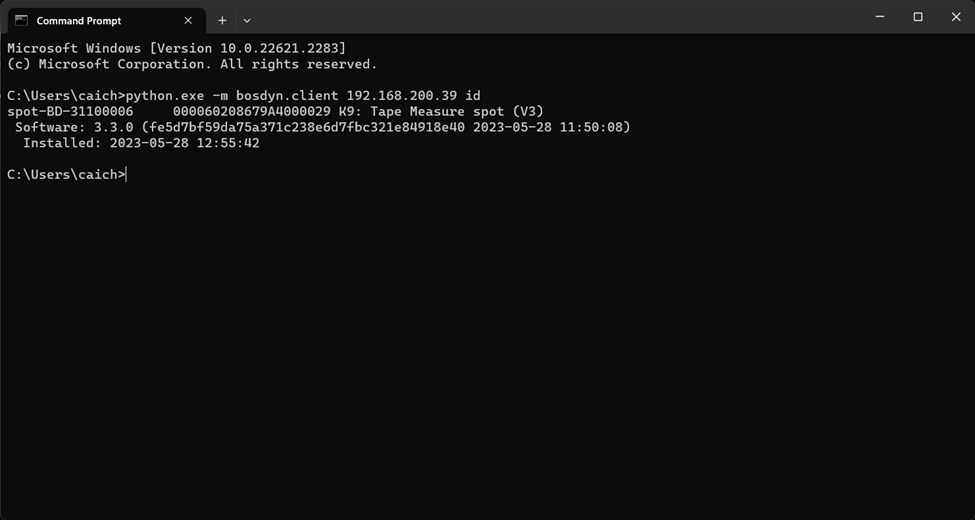
2. Ping Spot by opening command prompt and paste:

#### <span style="color: rgb(53, 152, 219);">Windows 10/11: </span>

```bash
python.exe -m bosdyn.client SPOT-IP id   # Replace SPOT-IP with the network address given to it
```

#### <span style="color: rgb(53, 152, 219);">For Mac &amp; Ubuntu users:</span>

```bash
python3 -m bosdyn.client SPOT-IP id # Replace SPOT-IP with the network address given to it
```

This should return Tape Measure's name and ID.

\*Should look something like this:
![](https://secretlibrary.rccf.club/uploads/images/gallery/2023-09/SK0pJhET87ozXOZY-embedded-image-325lvwto.png)