With Get-Image you'll find the images saved in the get\_image folder. Here is an example:
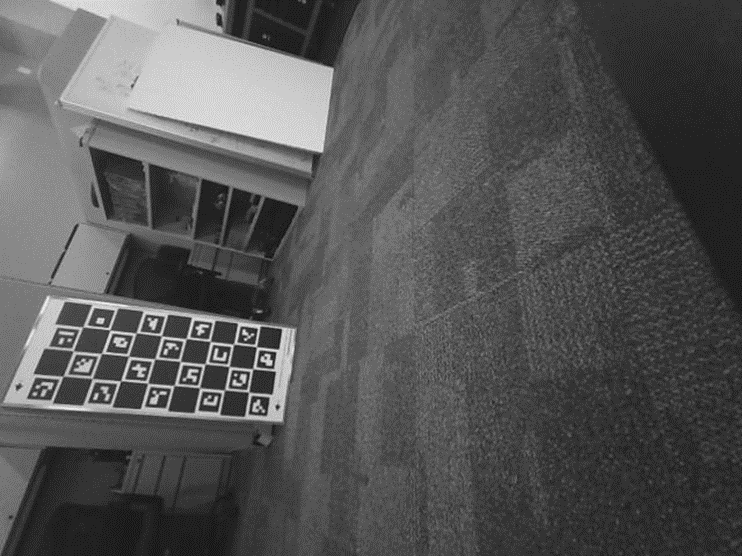 #### For Mac & Ubuntu users: 1. You will want to navigate to the directory of your Spot-SDK 2. The you will want to source your virtual environment so your computer know where to access the files: ```bash source my_spot_env/bin/activate ``` 3. Your going to want to navigate to your spot-sdk folder 4. Then cd into your get\_image folder of the Spot SDK ```bash cd ./python/examples/get_image ``` 5. Paste the following command to make sure the required python packages are installed: ```bash python3 -m pip install -r requirements.txt ``` 6. It’s normal if it takes a little bit. 7. Next you will want to run the command: ```bash python3 get_image.py SPOT-IP --image-sources frontleft_fisheye_image --image-sources frontleft_depth # Replace SPOT-IP with the network address given to it ``` 8. For username and password please see Dwight! 9.With Get-Image you'll find the images saved in the get\_image folder. Here is an example:
 ### Image-Viewer For streaming one of Spot's cameras. #### Windows 10/11 1. Start by opening up command prompt and getting into your virtual environment. 2. To get into virtual environment paste: ```bash .\my_spot_env\Scripts\activate.bat ``` 3. Paste in the command: ```bash python.exe -m pip install -r requirements.txt ``` 4. It’s normal if it takes a little bit. 5. Next you will want to run the command: ```bash python.exe get_image.py SPOT-IP --image-sources frontleft_fisheye_image --image-sources frontleft_depth # Replace SPOT-IP with the network address given to it ``` 6. For username and password please see Dwight! 7.With Get-Image you'll find the images saved in the get\_image folder.
- python.exe image\_viewer.py 192.168.200.39 --image-sources frontleft\_fisheye\_image - For more examples and optional adjustments [go to the Spot-SDK](https://dev.bostondynamics.com/python/examples/get_image/readme)\*IMPORTANT\* When in streaming mode press ESC to exit the viewer.
\*You should get images such as this one: **Want it to show you color? How about adjusting the picture’s size? You can mess with arguments during meetings! So be there!**