Network connection to Spot (WiFi)
Setting a static IP
The first thing you will need to do if you want to connect to a Boston Dynamics Spot robot is connect to the robot over the network. The easiest way to do that is to connect to the robots WiFi network. You will quickly run into an issue with connecting. most devices will state "can't connect to this network". This is because there is no DHCP server running on the network so new devices will have no way of knowing how to talk to each other. You must set a static IP address manually.
Windows 11
- Navigate to the settings on your computer. This can be found under the Windows start menu by clicking the gear icon labeled settings.
- Select Network & Internet from the list on the left
- Select Wi-Fi, then select Show available networks connect to spot, and then go back to Wi-Fi, from here select <Network Name> properties
- Scroll down to the IP assignment, and select the EDIT button.
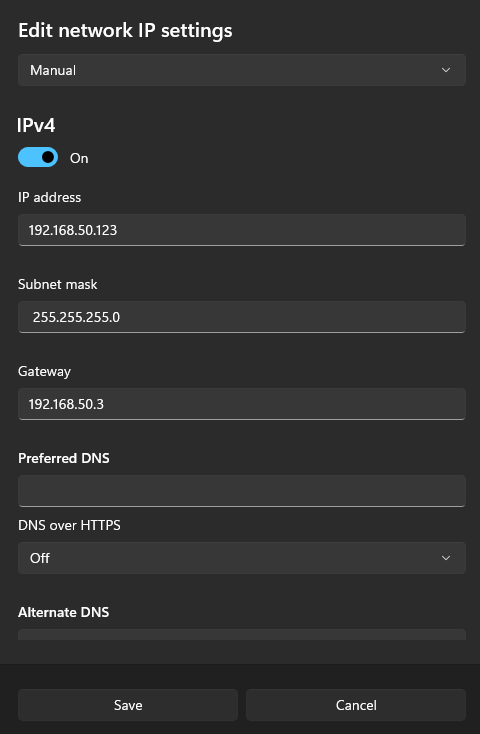
- Change the drop-down from Automatic (DHCP) to Manual and toggle on IPv4
- Enter the following settings: