
ROS2 Container to container communication
To-Do
- Determine why multicast send and receive are not working on our network
Setup
In this setup we have two containers:
- The Boston Dynamics ROS2 Spot ROS2 container in the an extension file build using these instructions.
- Our container built for spot
Network
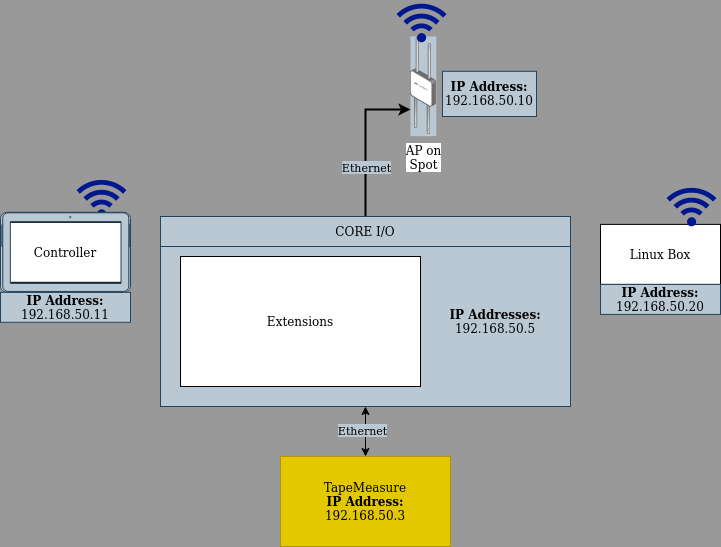
Container Configuration
Extension Container
- You need to ssh into the CORE I/O via the default IP of 192.168.80.3 or 192.168.50.3 if you are connected directly to the CORE I/O.
-
ssh 192.168.80.3
-
- You need to find the container id of your ROS2 installation.
-
sudo docker container ls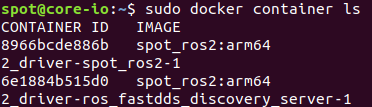
-
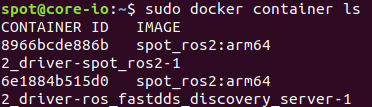
- Once you have your container id you will need to open up into the container.
-
sudo docker exec -it 8966bcde886b /bin/bash # replace "8966bcde886b" with your container id
-
- Once inside the container.
- The Extension container was setup with the following commands to test:
ping 192.168.50.20 # Ping test the dev computer.

export ROS_DISCOVERY_SERVER=192.168.50.5:21000 # This was changed from the BD default of 192.168.80.3 because we are using our own WiFi setup that bypasses Spot's internal network.

source ./install/setup.bash # Source workspace
source /opt/ros/humble/setup.bash # Source ROS2

ros2 run demo_nodes_cpp listener --ros-args --remap __node:=listener_discovery_server
Dev Container
The Dev container was setup with the following commands to test:
ping 192.168.50.5 # Ping test the CORE I/O.

export ROS_DISCOVERY_SERVER=192.168.50.5:21000 # This was changed from the BD default of 192.168.80.3 because we are using our own WiFi setup that bypasses Spot's internal network.

source ./install/setup.bash # Source workspace
source /opt/ros/humble/setup.bash # Source ROS2

ros2 run demo_nodes_cpp talker --ros-args --remap __node:=talker_discovery_server