
get_image
This guide is for Windows 10/11 only!
Verifying Connection:
- Make sure Tape Measure and your device are on the same network.
- Ping spot by opening command prompt and pasting in:
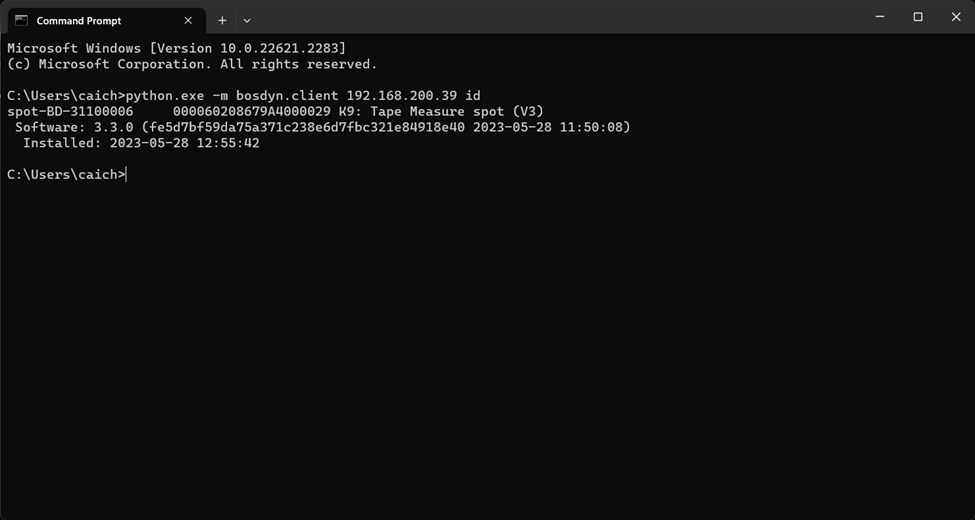
- python.exe -m bosdyn.client 192.168.200.39 id
- The string of numbers in this instance is the ip address of Tape Measure
- It should return Tape Measure's name and ID
*Should look something like this:
Get Image
- Get an image from one of Tape Measures cameras!
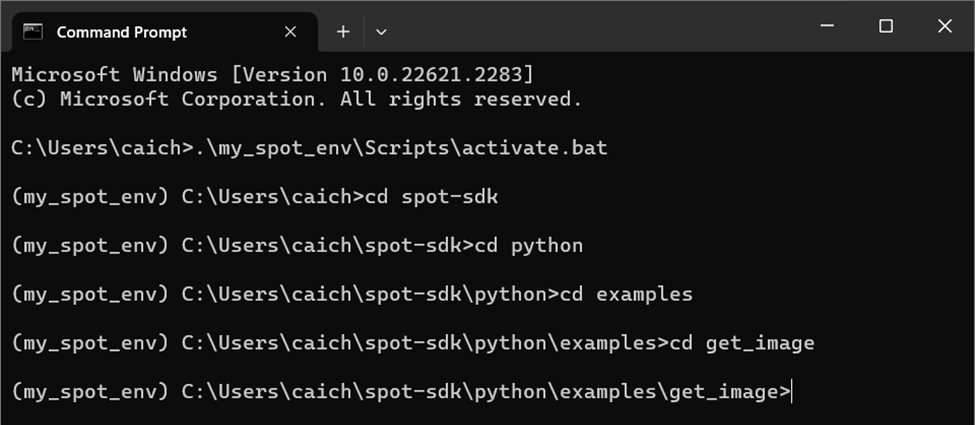
- Start by opening up command prompt and getting into your virtual environment.
- To get into virtual environment paste:
- .\my_spot_env\Scripts\activate.bat
- For more info check previous documentation.
- Then cd into your get_image folder of the spot SDK
- To do so find where the spot sdk folder is located.
- Then type cd one folder at a time until you reach get_image
*Should look something like this:
- Then paste in the command:
- python.exe -m pip install -r requirements.txt
- It’s normal if it takes a little bit.
- You are now free to run any get_image command.
- For username and password please see Dwight.
- For Static Image:
- python.exe get_image.py 192.168.200.39 --image-sources frontleft_fisheye_image --image-sources frontleft_depth
- With static image you'll find the images saved in the get_image folder.
- For Streaming his cameras:
- python.exe image_viewer.py 192.168.200.39 --image-sources frontleft_fisheye_image
- python.exe image_viewer.py 192.168.200.39 --image-sources frontleft_fisheye_image
*IMPORTANT* When in streaming mode press ESC to exit the viewer.
*You should get images such as this one:
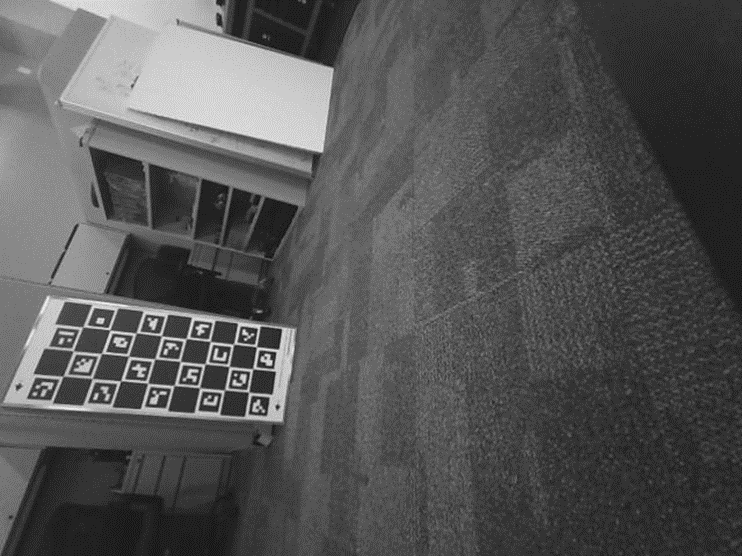
Want it to show you color? How about adjusting the picture’s size? You can mess with arguments during meetings! So be there!