
Get-Image / Image-Viewer
Verify Connection First
You will want to make sure that Spot and your computer are connected to the same network. Follow this guide.
Get Image
This will get an image from one of Tape Measures cameras!
Windows 10/11
- Start by opening up command prompt and getting into your virtual environment.
- To get into virtual environment paste:
.\my_spot_env\Scripts\activate.batpython.exe -m pip install -r requirements.txtpython.exe get_image.py SPOT-IP --image-sources frontleft_fisheye_image --image-sources frontleft_depth # Replace SPOT-IP with the network address given to itWith Get-Image you'll find the images saved in the get_image folder. Here is an example:
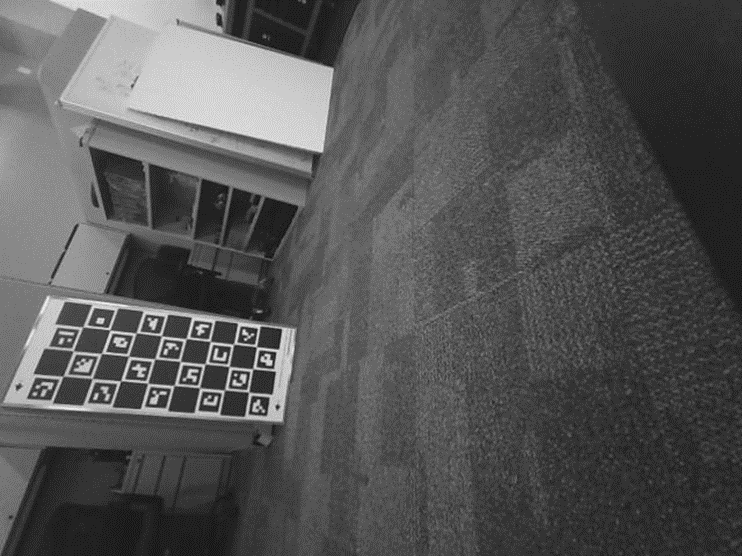
For Mac & Ubuntu users:
- You will want to navigate to the directory of your Spot-SDK
- you will want to source your virtual environment so your computer know where to access the files:
source my_spot_env/bin/activatecd ./python/examples/get_imagepython3 -m pip install -r requirements.txtpython3 get_image.py SPOT-IP --image-sources frontleft_fisheye_image --image-sources frontleft_depth # Replace SPOT-IP with the network address given to itWith Get-Image you'll find the images saved in the get_image folder. Here is an example:
Image-Viewer
For streaming one of Spot's cameras.
Windows 10/11
- Start by opening up command prompt and getting into your virtual environment.
- To
dogetsointofindvirtualwhereenvironmentthepaste:
spot.\my_spot_env\Scripts\activate.batsdk folder is located. Then type cd one folder at a time until you reach get_imageThen pastePaste in the command:
python.exe -m pip install -r requirements.txt
Mac:python3 -m pip install -r requirements.txt
- It’s normal if it takes a little bit.
YouNextareyounowwillfreewant to runanytheget_imagecommand:
command.python.exe get_image.py SPOT-IP --image-sources frontleft_fisheye_image --image-sources frontleft_depth # Replace SPOT-IP with the network address given to it- For username and password please see
Dwight. For all the following commands Mac users just need to replace python.exe with python3.For Static Image:python.exe get_image.py 192.168.200.39 --image-sources frontleft_fisheye_image --image-sources frontleft_depth
-
With
static imagesGet-Image you'll find the images saved in the get_image folder.
*Should look something like this:
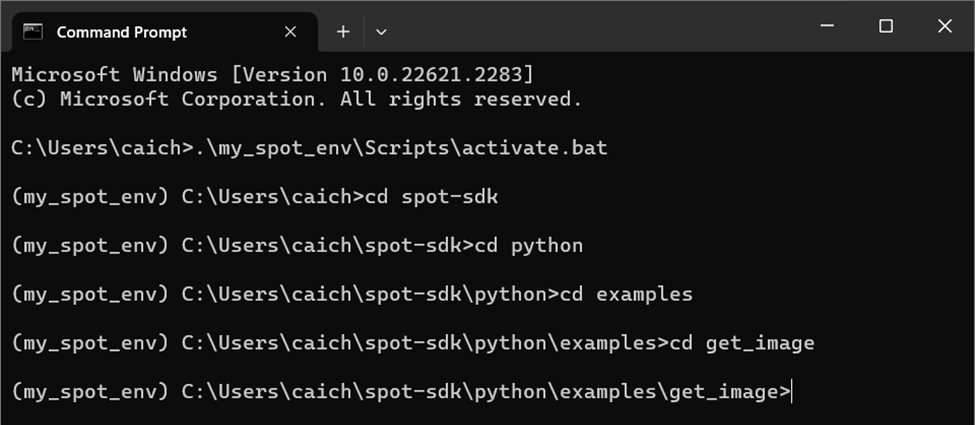
Image-Viewer
For Streaming his cameras:
- python.exe image_viewer.py 192.168.200.39 --image-sources frontleft_fisheye_image
- For more examples and optional adjustments go to the Spot-SDK
*IMPORTANT* When in streaming mode press ESC to exit the viewer.
*You should get images such as this one:
Want it to show you color? How about adjusting the picture’s size? You can mess with arguments during meetings! So be there!